Installing Mongo
Here you can find guidelines to set-up the Mongo Shell on your computer, installing MongoDB Community Edition:
- MacOS, further guidance at Mongo Docs
- Windows, further guidance at Mongo Docs
For Linux users, please follow MongoDB online guidelines for your OS (e.g., Red Hat, Ubuntu, Debian).
MacOS
Installing MongoDB via Homebrew.
Homebrew Install
On MacOS, type the following on your terminal (skip step 1 and 2 if you already have Xcode and Homebrew):
1). Install Xcode:
xcode-select --install
2). Install Homebrew:
/bin/bash -c "$(curl -fsSL https://raw.githubusercontent.com/Homebrew/install/HEAD/install.sh)"
3). Run:
brew tap mongodb/brew
4). Now you can install the MongoDB Community Edition:
brew install mongodb-community@7.0
Run MongoDB
5). To run MongoDB as a MacOS service, type on your terminal:
brew services start mongodb-community@7.0
6). Then, you can start the mongo shell typing:
mongo
7). To exit from the mongo shell, you can simply type:
exit
8). To stop running MongoDB:
brew services stop mongodb-community@7.0
Windows
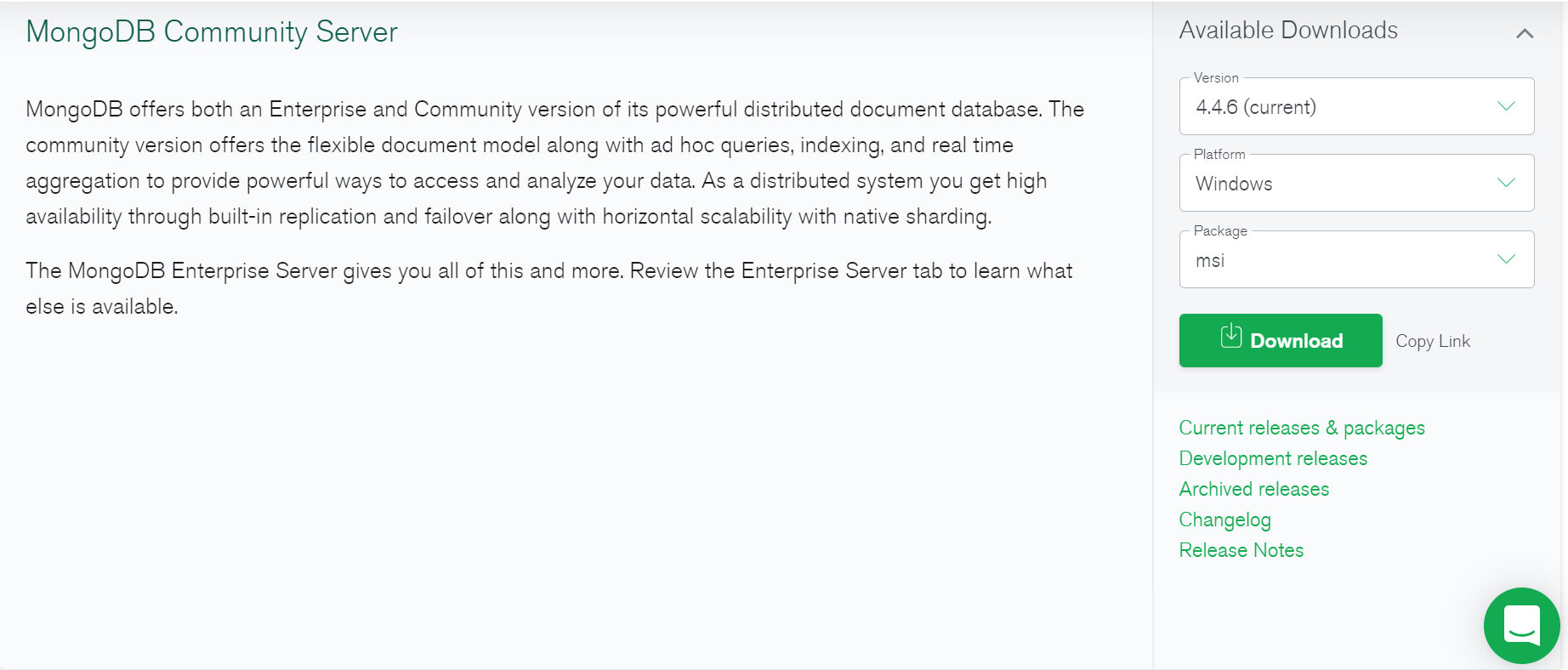
1). Visit the MongoDB Download centre. Select Community Edition, Windows x64, and download the MSI file:
2). Once the download is completed, click on the downloaded file. The expected result is the following:
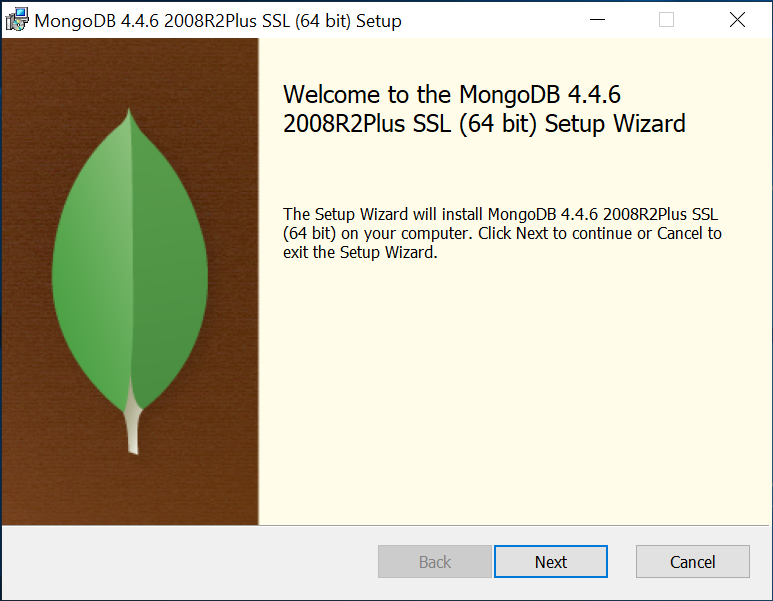
3). Click Next
4). Then, accept ‘terms in the Licence Agreement’:
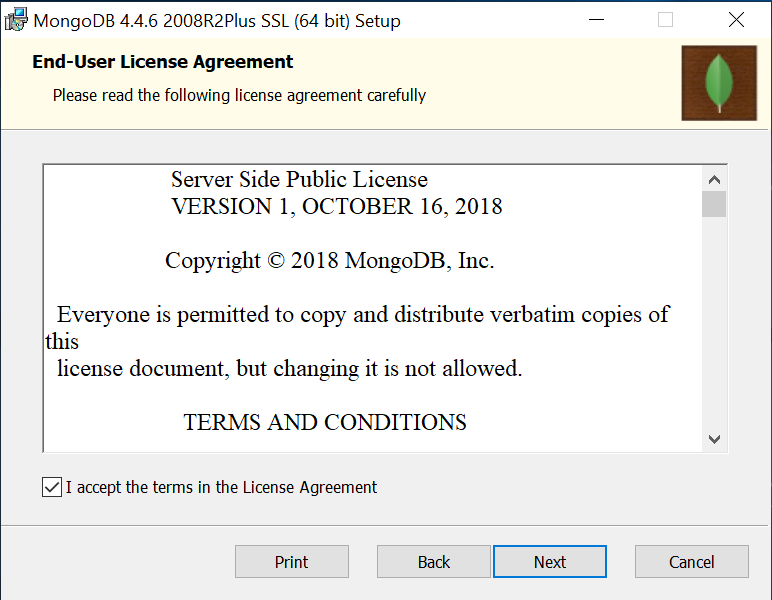
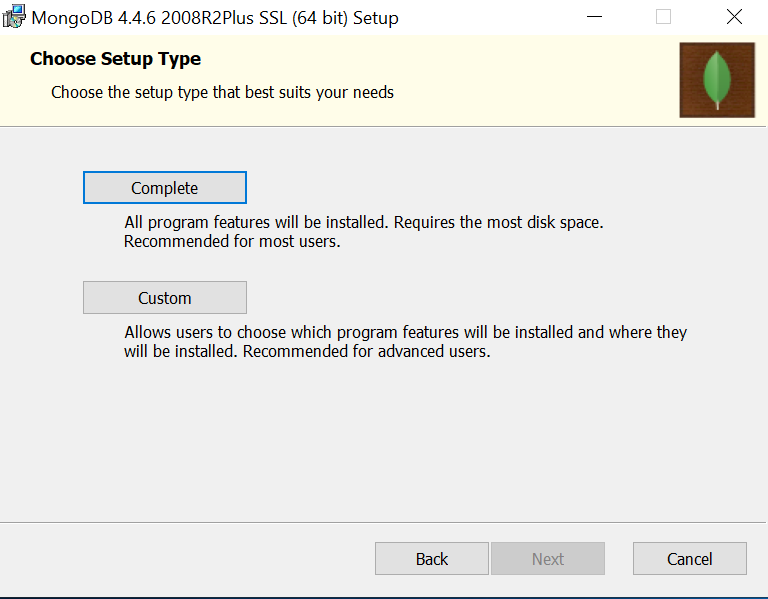
5). Choose the complete set-up type:
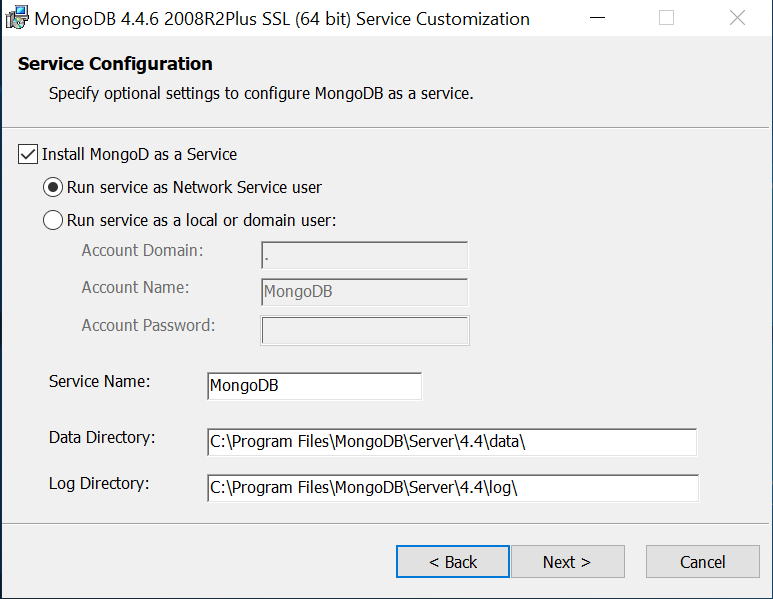
6). Leave default settings and click next:
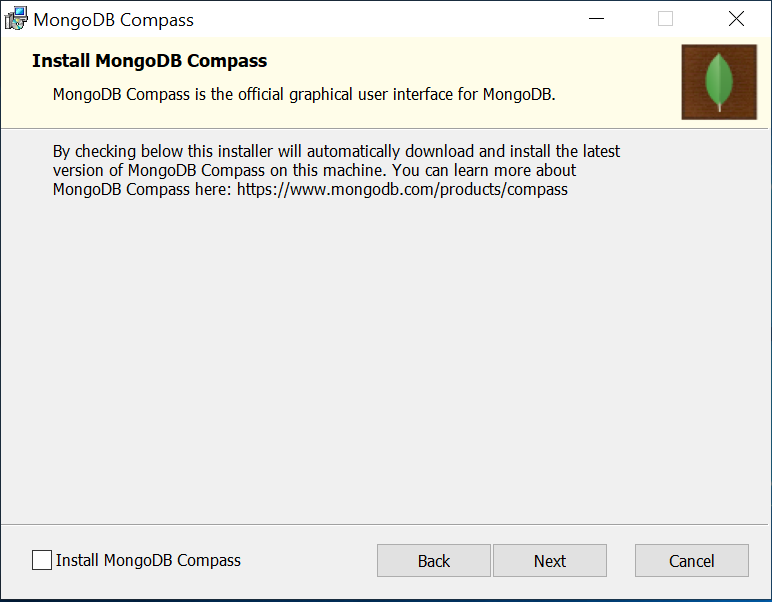
7). Do not install MongoDB Compass here. So, uncheck the box Install MongoDB
Compass:
8). Click Next
9). Then, click Install
10). When the installation is completed, click Finish
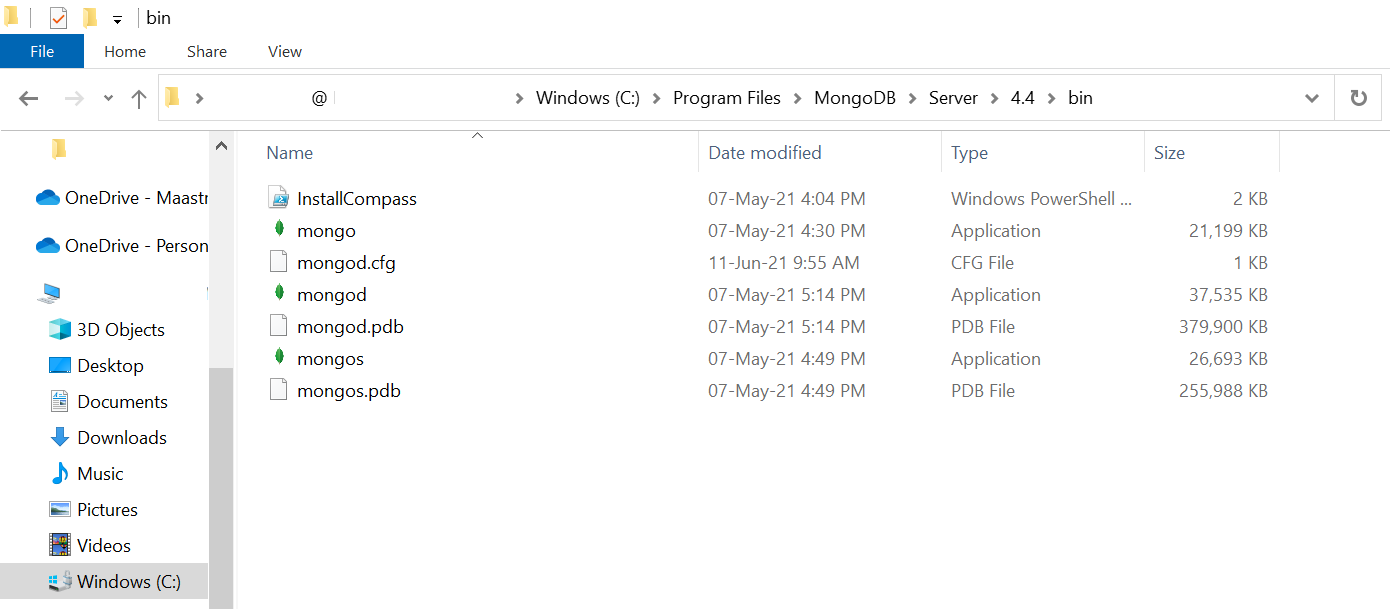
11). Navigate to the following directory:
C:\Program Files\MongoDB\Server\6.0\bin
12). Check that everything is fine. The expected outcome should be:
13). In the Windows search bar type system environment variable:
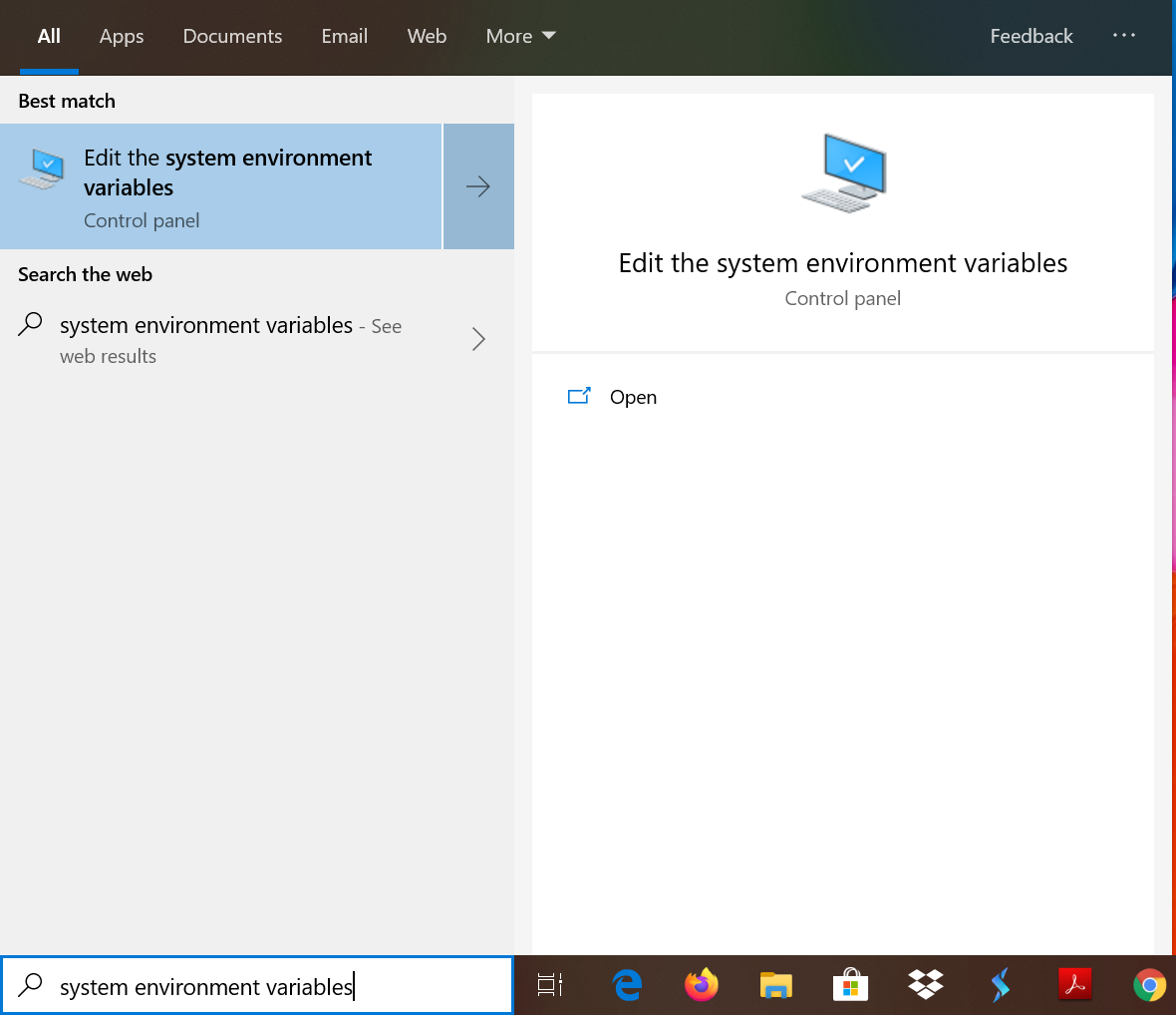
14). Select Edit the system environment variable
15). Click Environment Variables:
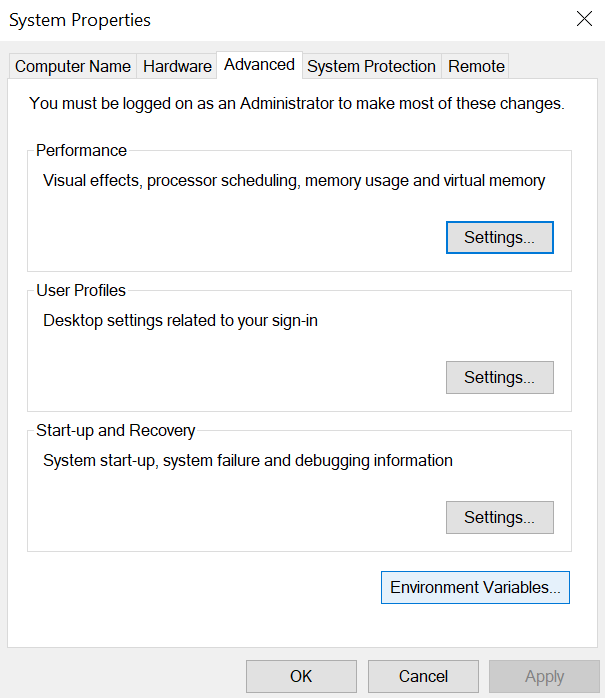
16). Double click on path:
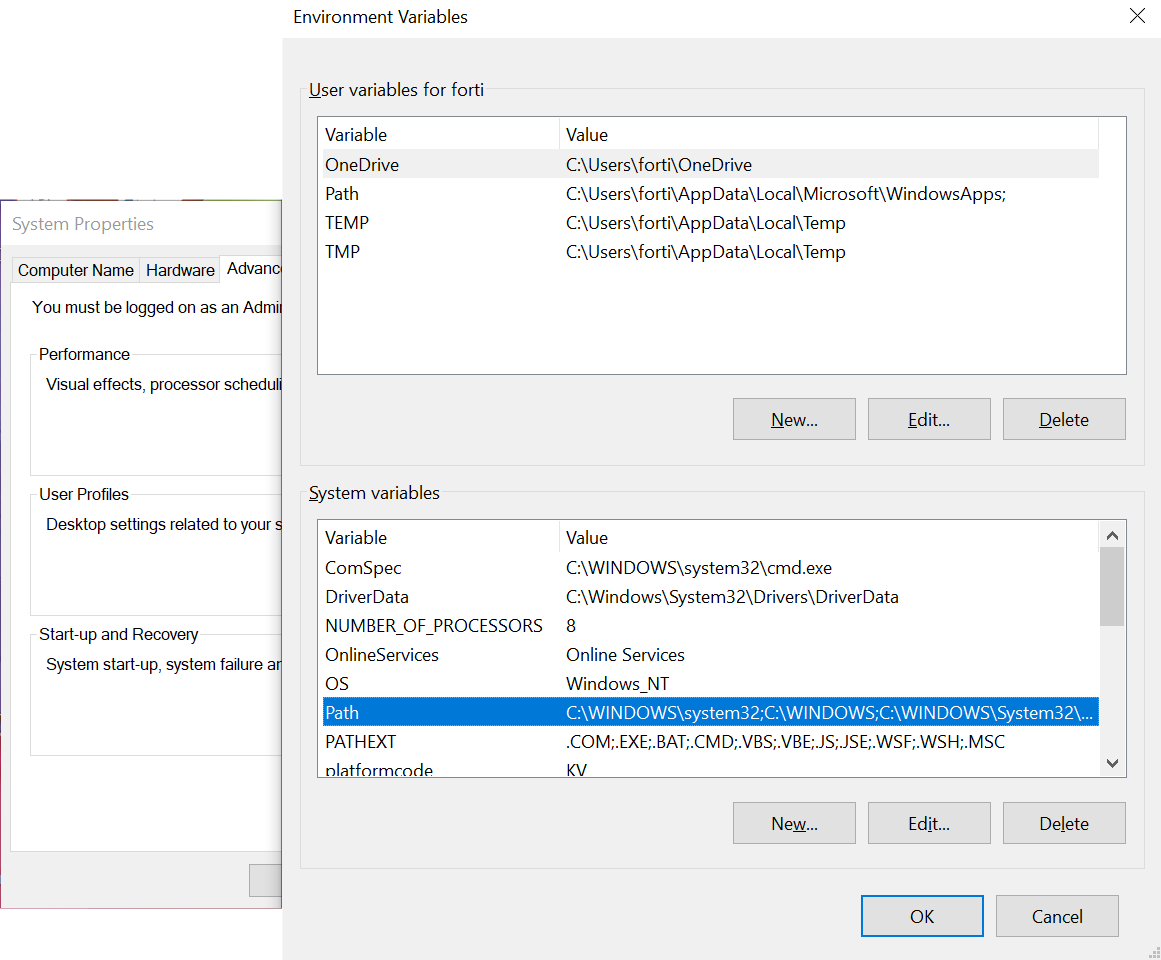
17). Now, you should see the following:
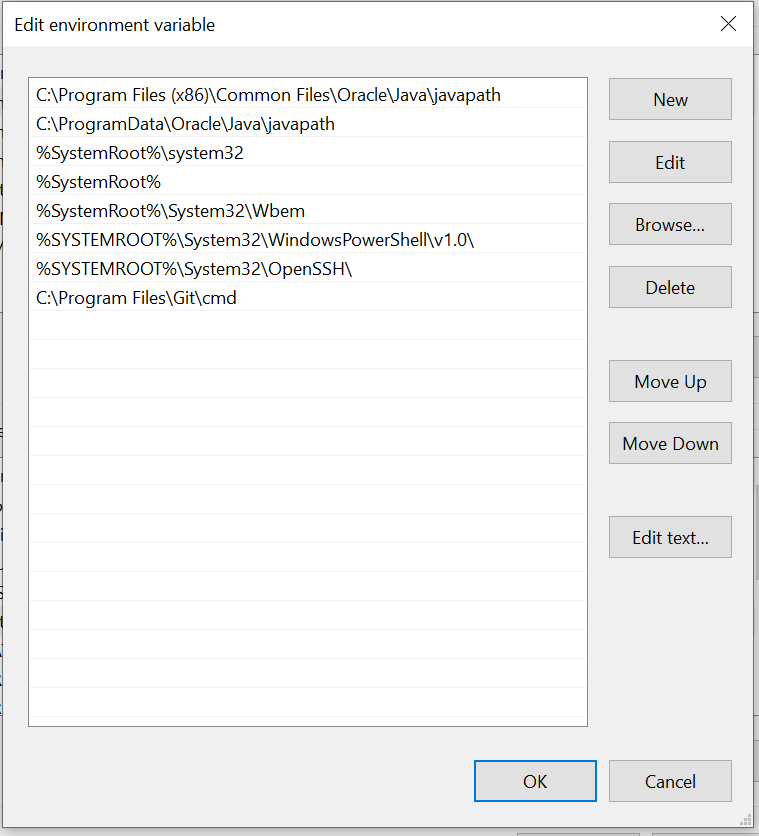
18). Go back to:
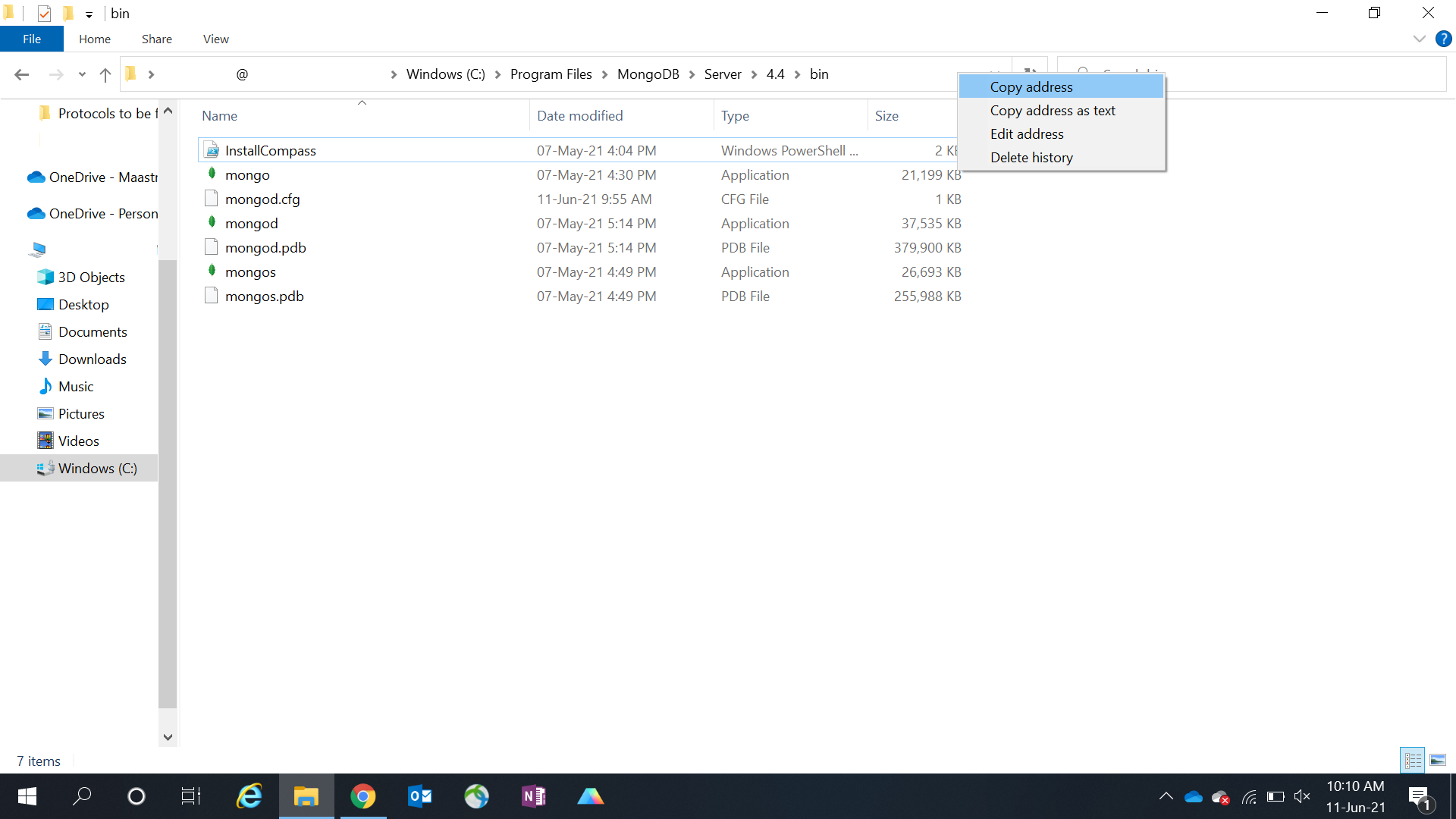
C:\Program Files\MongoDB\Server\6.0\bin
19). Right-click on bin and copy the path:
 </div>
20). Now, within environment variable, click on new and paste the path:
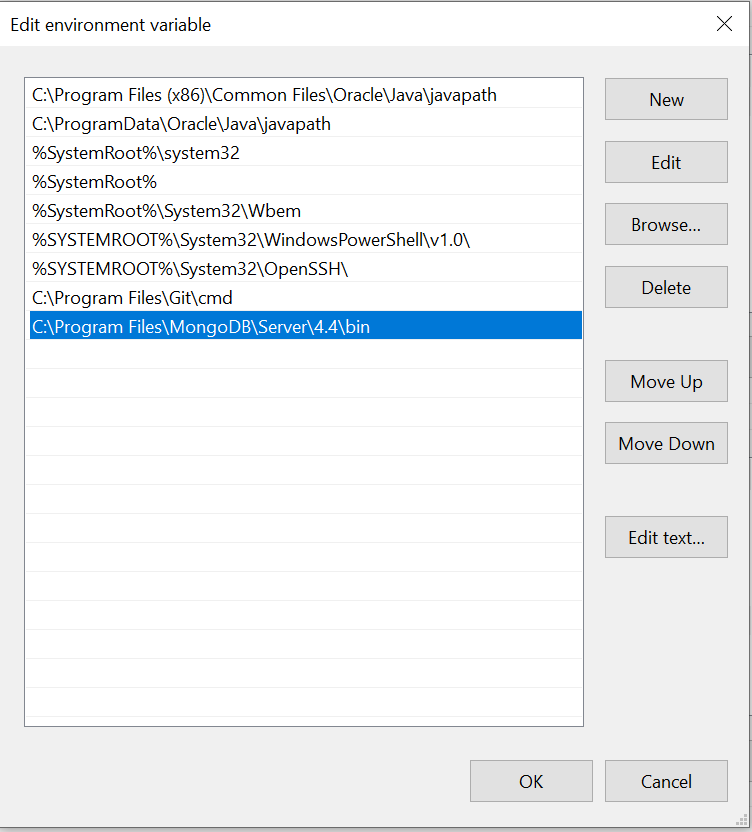
21). Click OK
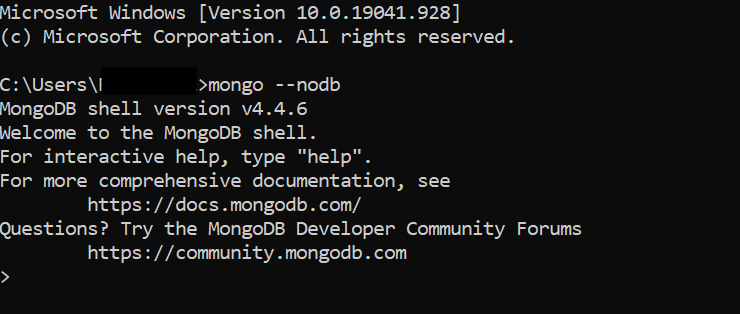
22). Open the Command Prompt and type:
mongo --nodb
23). This is the result expected:
24). To exit, type:
exit
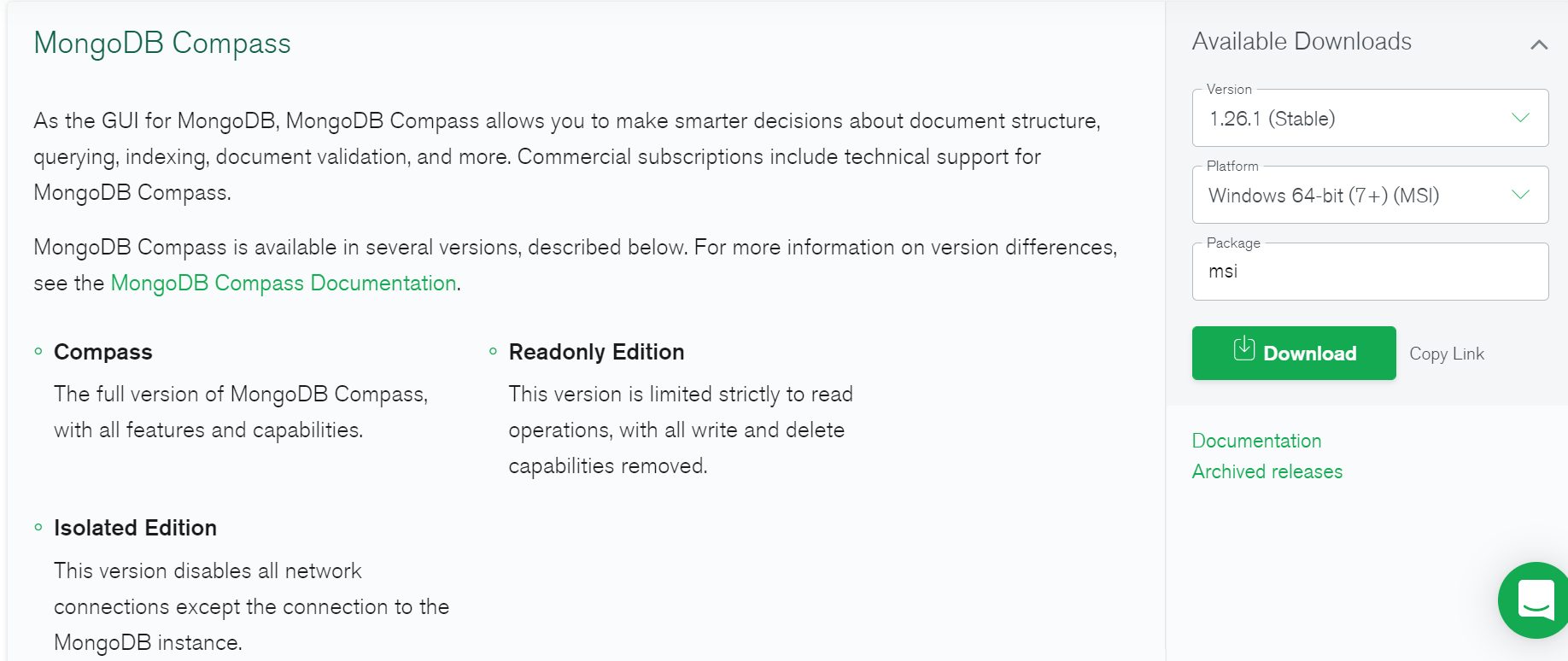
25). To install MongoDB Compass, please navigate to this page and download the .msi: